Support Hub
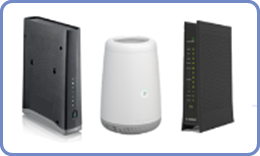
This is your Wi-Fi equipment. The modem is typically located in a media panel in your home, in a closet or utility area. (If your Wi-Fi equipment looks different click here.)
Q: How do I see pricing for my community?
A: During the sign-up process, you will be given pricing and internet speed information. Click on the Check Availability button and select the option that is best for you.
Q: How does the monthly subscription work?
A: Each prepaid billing cycle automatically renews monthly on the same calendar day.
Q: Will I need a modem or any equipment?
A: You do not need any additional equipment. The modem is already installed in your home and should be in a utility panel. Do not plug in a personally owned modem or router into the Ethernet jack. Adding one of these devices can significantly degrade your Wi-Fi coverage. A modem or router adds Wi-Fi interference which can cause slower or intermittent connectivity.
Q: Where do I find the the Network SSID and Key/Passphrase (password)?
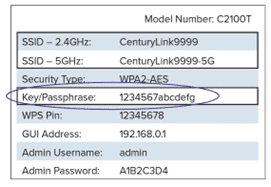
A: Look for a modem with a label similar to this image. The SSID and password are printed on the label. The label is on the utility closet door, or on the inside of the panel, or attached to the modem.
Q: How do I connect my devices to my Wi-Fi service?
A: Once you have completed the sign-up process, you can connect all your smart devices to the Network SSID and password found on the modem label. Some homes have wired outlets, so you can connect your devices with an Ethernet cord.
Q: Why do I need to select an installation date when placing my order?
A: We’ve found a potential issue with your home’s internet equipment that needs a technician’s attention. Please choose a convenient date and time for your appointment so we can ensure everything is set up correctly.
Q: What can I plug in to the Ethernet jack in my home?
A: At some properties, Quantum Fiber has pre-wired one or more Ethernet jack(s) in your home. You can directly connect one of your devices into the Ethernet jack using an Ethernet cord. Do not to plug in a personally-owned modem or router into the Ethernet jack.
Q: Can I use my personal modem?
A: Do not plug a personally-owned modem or router into the Ethernet jack. Adding one of these devices can significantly degrade your Wi-Fi coverage. An additional modem or router adds Wi-Fi interference which can cause slower or intermittent connectivity.
Q: How do I connect my smart device's Wi-Fi to the Network SSID?
A: Setup varies slightly by device, but most devices have a Wireless or Wi-Fi Network Settings menu, where you will find a list of all the networks detected in your area.
General steps:
1. Find your device's wireless settings menu and select "Enable" or "On" to turn Wi-Fi on.
2. Select your Network (SSID) from the list, then enter the Network key/passphrase when prompted and select "Connect" or "Join."
3. Optional: You can usually check a box to "connect automatically" or "remember" the Network if you want your device to connect to that Network without re-entering your credentials every time.
4. Once you've entered the correct password, the device should connect within a moment.
Tips:
- The SSID printed on the modem label is the Network Name that will appear on your device Network list.
- The key/passphrase on the modem label is the password you will enter to connect your device to the network.
- To connect more than one device to your Network, you simply repeat the above steps for each device. Be sure to complete the sign-up process in order to have access to Wi-Fi service.
Q: How do I manage my account online?
A: Sign in by clicking the button at the top of the page, then enter your email address and password. Once logged in, you can find your billing history and account management options which allow you to change your settings and information 24/7.
Q: How do I change my Network password? Or can I change my password?
A: Your password is provided on the modem label. It cannot be changed online.
Q: What do I do if I don’t have an account?
A: Step 1: Let us assist you by contacting a Fiber Customer Success Team member at 833-926-1289.
Step 2: Select your speed plan.
Step 3: Set up your account password
Once you’ve signed up for your service, you will receive a Welcome Email from Quantum Fiber. Follow the instructions to set your account password.
Step 4: If you are not already connected to Quantum Fiber Wi-Fi, review your Welcome Email instructions on how to connect your devices.
Q: How much do speed upgrade plans cost?
A: Sign in to your account to see speed plans available at your home.
Q: How long will it take to see my upgraded speed?
A: You can choose to activate your upgraded speed instantly or select a start date.
Q: How do I cancel my monthly subscription?
A: Let us assist you by contacting a Fiber Customer Success Team member at 833-926-1289. Do not return or remove the internet equipment (internet modem, nodes/pods plugged into power outlets, contents inside the media panel, etc.) from your home when moving. Your community has all necessary equipment pre-installed in each home.
Q: What should I do if I am moving to another apartment/home in the same community?
A: Let us assist you by contacting a Fiber Customer Success Team member at 833-926-1289. Do not return or remove the internet equipment (internet modem, nodes/pods plugged into power outlets, contents inside the media panel, etc.) from your home when moving. Your community has all necessary equipment pre-installed in each home.